Install HotPlayer · on your Android
Follow the steps
- 1
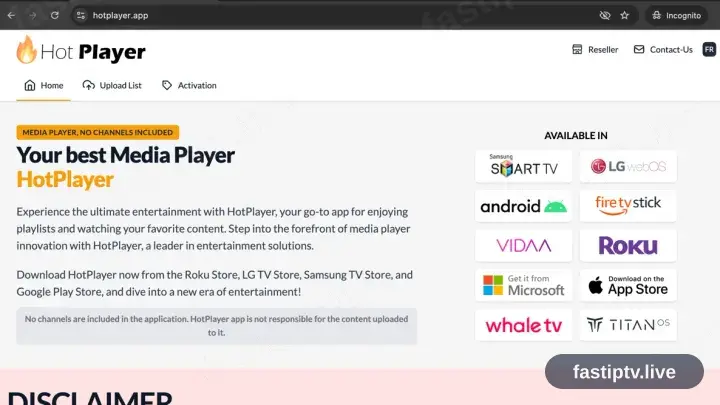
Visit apk.hotplayer.app
In the phone browser open apk.hotplayer.app. The file downloads on arrival — nothing needs tapping.
- 2
Install the file, then open HotPlayer
Open the package from your notifications or Downloads folder and confirm. Android asks once whether the browser may install apps — allow it in Settings, return, then launch HotPlayer.
- 3
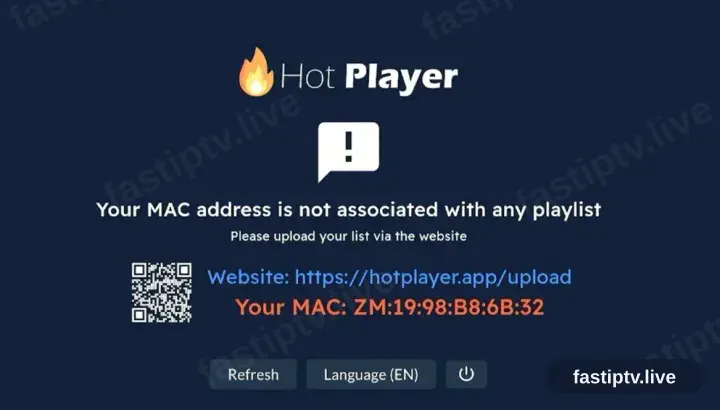
HotPlayer requests a playlist
On first launch HotPlayer reports no playlist and displays a device ID alongside hotplayer.app/upload. Leave the screen where it is.
- 4
Register the playlist at hotplayer.app/upload
From a browser, open hotplayer.app/upload. Set the source to Xtream Codes, supply the server URL, username and password from your account on our website, and save.
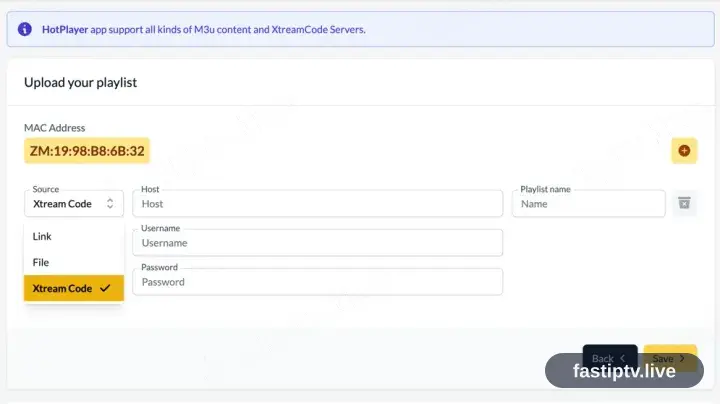
The browser on the same handset is fine for this — the upload page is a website, not part of the app.
- 5
Return to the app and tap Refresh
Back in HotPlayer, tap Refresh. The saved playlist is picked up straight away.
- 6
Playback time
The channel list, films and series load in. Select a channel to begin playback.
Installing HotPlayer on Android: what is different
On an Android phone or tablet, HotPlayer installs from Google Play in the usual way — no rooting and no developer settings.
If you install HotPlayer from an APK instead, Android asks once for permission to install from that source. Grant it to the browser or file manager doing the install, not system-wide.
Playing over mobile data works, but a live HD channel uses roughly 1–2 GB per hour — worth checking your plan before a full match.
Your Fast IPTV login details (username, password & server URL, M3U link or MAG portal URL) are in your account on our website as soon as your subscription is active. Can't find them? Contact support and we'll help.
Get your subscription
Get Started